Watercolor Photo Effect PS Action Guide
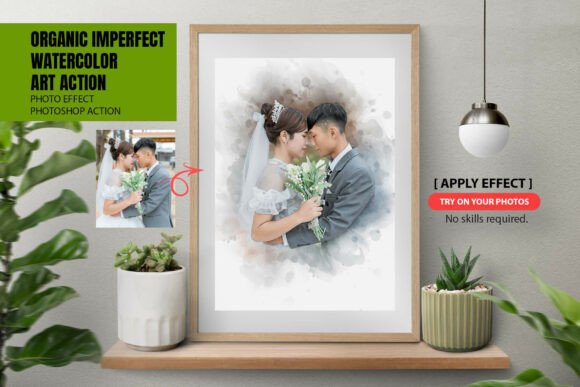
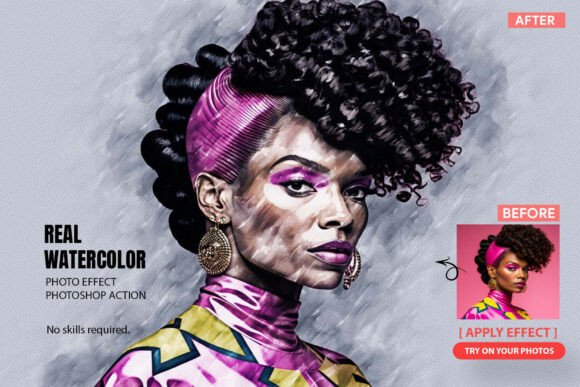
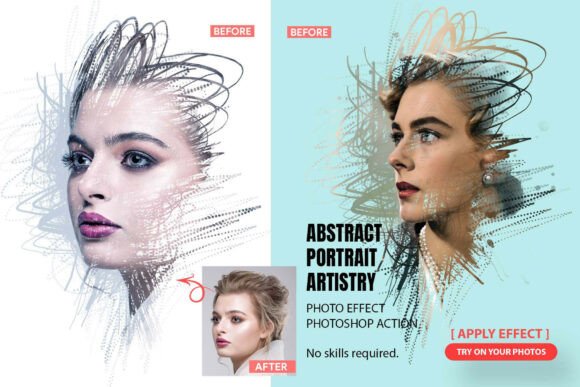
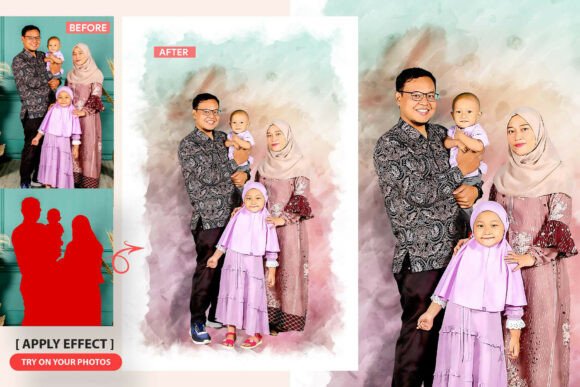
Transforming a standard digital photograph into a hand-painted artistic piece usually requires hours of manual brushwork, layer masking, and color grading. For designers and photographers working under tight deadlines, this traditional workflow is often impractical. The Watercolor Photo Effect PS Action bridges this gap by automating complex rendering processes while retaining the organic unpredictability of real paint. Specifically, tools like Aquarelle Dream Pro have redefined what automated actions can achieve by moving beyond simple filters to intelligent color sampling and texture application.
Rather than applying a flat overlay, advanced actions analyze the underlying pixel data to generate results that feel authentic. This distinction matters significantly for professionals who need high-resolution outputs for print or commercial branding. Understanding how these actions function, where they excel, and how to integrate them into a creative workflow can drastically reduce production time without sacrificing aesthetic quality.
Beyond Basic Filters: Intelligent Color Logic
Most entry-level watercolor actions fail because they apply a uniform texture regardless of the image content. The result often looks like a photo with a paper texture pasted on top. High-quality solutions utilize a different approach. Aquarelle Dream Pro, for example, employs a hidden formula that picks colors directly from your photo’s background. This smart sampling ensures that the painted areas harmonize naturally with the source material rather than clashing with it.
This intelligent blending creates soft transitions that mimic the way pigment bleeds into wet paper. However, not every project calls for subtlety. Professional workflows demand versatility, which is why robust actions include a hard blend option. This allows users to toggle between gentle, dreamy aesthetics and bold, graphic combinations suitable for poster art or album covers. Having both options within a single action file eliminates the need to purchase multiple plugins or manually adjust curves and levels after the fact.
Practical Applications Across Industries
The utility of a Watercolor Photo Effect PS Action extends far beyond personal hobbyist projects. Various sectors leverage this technology to enhance visual communication and brand identity.
- Marketing and Advertising: Brands seeking an organic, approachable vibe often use watercolor effects to soften corporate messaging. Real estate agents use these effects to create romanticized listing photos, while boutique retailers apply them to product photography for social media campaigns.
- Publishing and Editorial: Book cover designers frequently rely on these actions to create evocative imagery for romance, fantasy, or memoir genres. The ability to maintain high resolution is critical here, as the final output must be print-ready at 300 DPI or higher.
- Event Stationery: Wedding planners and stationers use watercolor conversions to turn client engagement photos into custom invitation suites. The separated layers allow for easy text placement over painted backgrounds without obscuring important details.
- Digital Content Creation: Bloggers and educators use stylized images to break up text-heavy articles. A unique watercolor header stands out in search results and social feeds more effectively than generic stock photography.
Technical Assets and Workflow Integration
Evaluating a Photoshop action requires looking past the preview images to examine the included assets. A professional-grade package should be comprehensive. When you acquire a tool like Aquarelle Dream Pro, you are typically receiving a suite of files designed to work in concert. The core .ATN file handles the automation, but the accompanying .ABR brush file provides original watercolor brush stock that adds genuine texture. Generic brushes often leave repetitive patterns that the eye detects instantly; hand-crafted stock avoids this pitfall.
Additionally, included .PAT pattern files for borders add a finishing touch that frames the artwork professionally. Crucially, the best actions organize all layers separately. Non-destructive editing is non-negotiable for serious work. You need the ability to hide border styles, adjust specific brush strokes, or tweak opacity long after the action has run. Transparent PNG and PSD export options further streamline the process for users who need to move assets between software platforms or deliver files to clients immediately.
Resolution Independence and Performance
A common frustration with older actions is their inability to handle modern camera sensors. An effect that looks beautiful on a 1000px web image might turn into a muddy mess on a 24-megapixel RAW file. Modern Watercolor Photo Effect PS Action scripts are engineered to scale. They work with any image size, supporting high-resolution inputs perfectly. This scalability ensures that the brush stroke density and texture grain remain proportional whether you are designing a business card or a billboard.
Performance also ties into usability. Actions should be optimized to run efficiently without crashing Photoshop or requiring excessive RAM. Including a video tutorial within the help file is a standard best practice that reduces the learning curve. Visual learners benefit immensely from seeing the exact settings and preparation steps required before running the script, such as ensuring the image is in RGB mode or 8-bit/16-bit channel depth.
Selecting the Right Tool for Your Needs
When choosing a watercolor action, prioritize flexibility over novelty. Ask yourself if the action allows for post-processing adjustments. Can you change the color palette after generation? Is the border style optional? Does it preserve the focal point of the image, or does it obscure faces and key details? Tools that offer separate brush stock layers answer these needs effectively.
Consider the source of the textures as well. Actions built using realistic original watercolor brush stock yield superior results compared to those relying on synthetic noise algorithms. The tactile quality of real media scanned at high resolution translates to digital canvases in a way that mathematical emulation cannot replicate. Finally, verify compatibility with your version of Photoshop. While most actions are backward compatible, checking system requirements prevents workflow interruptions.
Maximizing Creative Output
To get the most from your Watercolor Photo Effect PS Action, start with high-quality source material. While the action enhances images, it cannot fix poor lighting or extreme blur. Photos with distinct subjects and moderate contrast tend to convert best. Experiment with the hard and soft blend modes on the same image to see which better serves your narrative. Use the organized layers to mask out areas where you want the original photo to show through, creating a mixed-media look that feels intentional and curated.
Remember that automation is a starting point, not a destination. The true value lies in combining the speed of the action with your own artistic judgment. Adjust layer opacities, add manual brush touches using the included .ABR files, and refine color balances to match your specific brand guidelines. By treating the action as a collaborative tool rather than a magic button, you maintain creative control while enjoying significant efficiency gains. This balanced approach ensures your work remains distinctive even when utilizing popular digital assets.